CloudieConnect on your cell phone
CloudieConnect puts your office extension on your iPhone or Android phone. Calls to your extension ring in the app, and calls you make show your business number. This guide walks through the phone app. For Windows or Mac, see CloudieConnect on your computer.
What you see in the app depends on how PMX set up your account. For example, Messages only appears if texting is turned on for your number.
1. Install the app
- iPhone: CloudieConnect on the App Store
- Android: CloudieConnect on Google Play
2. Allow permissions
The first time you open CloudieConnect, it explains each permission it needs. Check the box to agree and tap Get Started, then tap Allow each time your phone asks.
The important ones are Microphone, Notifications and Phone. Without them, calls won't ring or callers won't hear you. On Android, also allow Display over other apps, so incoming calls pop up while you're using another app.
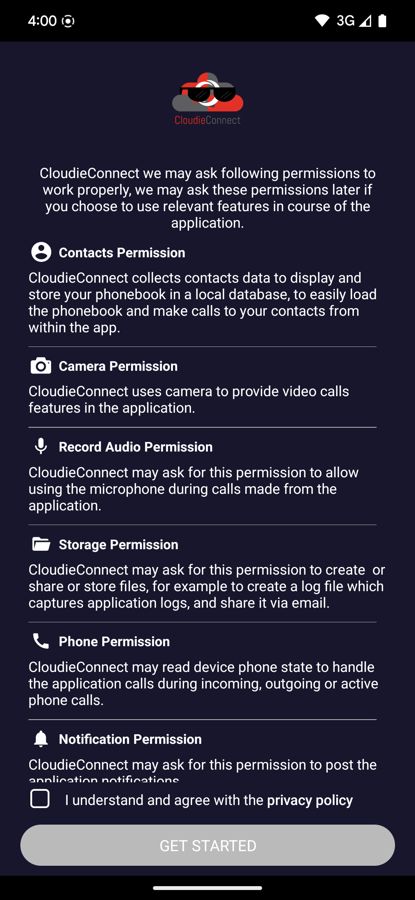
Skipped one by mistake? Open your phone's Settings, go to Apps > CloudieConnect > Permissions, and turn them on.
3. Sign in
- Enter your username and tap Next.
- Enter your password and tap Login.
Use the same username and password as the phone portal. PMX accounts don't use the SSO button, so you can ignore it.
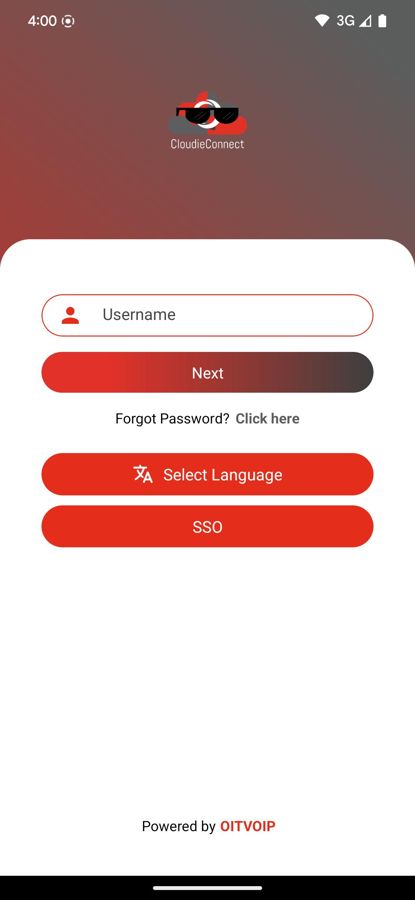
Forgot your password? Tap Click here next to Forgot Password?, enter your username and tap Continue. A reset link is emailed to the address on your account.

4. Make a call
- Keypad: tap Keypad at the bottom, dial the number, and tap the green call button.
- Contacts: tap Contacts, choose a person, and tap the green phone icon next to their extension.
- Recent calls: tap Recents and tap the phone icon next to a call to call back.
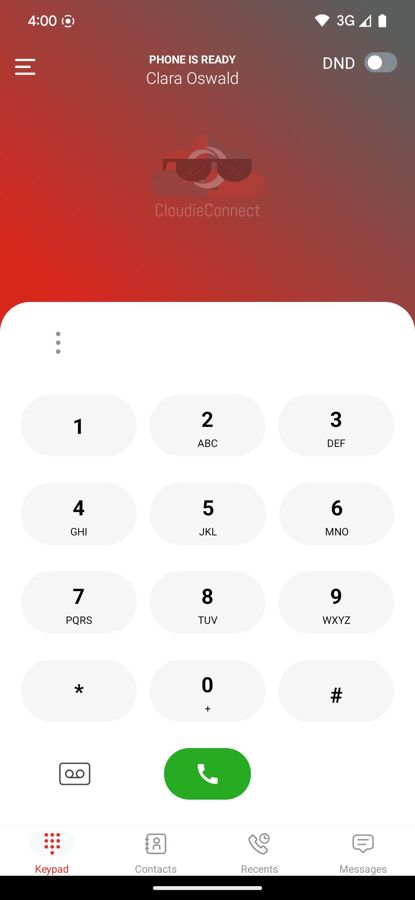
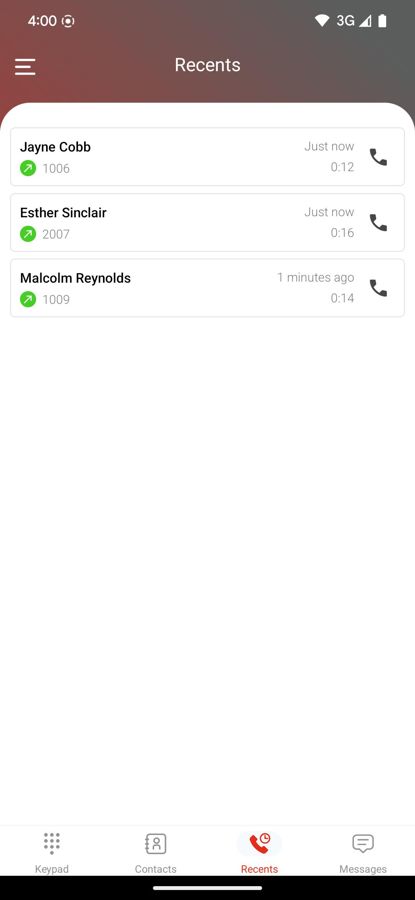
The top of the keypad screen shows PHONE IS READY when the app is connected. The DND switch next to it turns Do Not Disturb on and off.
5. During a call
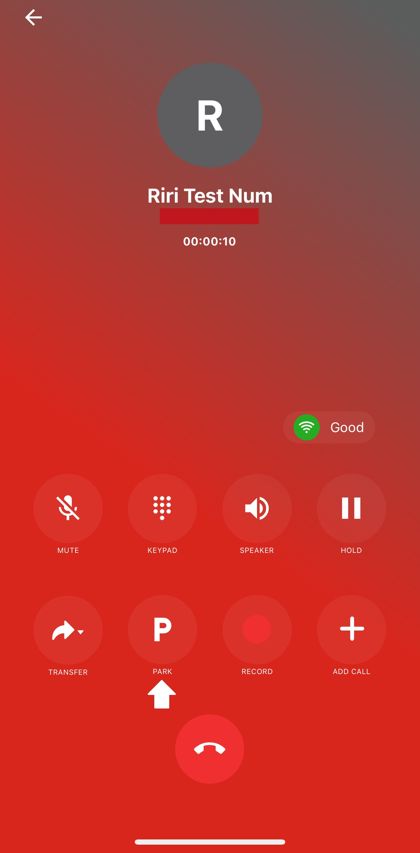
The call screen has these buttons. Some only show if your account includes them.
| Button | What it does |
|---|---|
| Mute | Callers can't hear you |
| Keypad | Press numbers, for example in a phone menu |
| Speaker | Switches to speakerphone |
| Hold | Puts the caller on hold. Tap it again to go back to them |
| Transfer | Sends the call to someone else. See below |
| Park (P) | Parks the call so anyone in the office can pick it up |
| Add Call | Adds another person to make a conference call |
The small Good label shows your connection quality. If it changes to a warning while callers are breaking up, move somewhere with better Wi-Fi or cell signal.
Transfer a call
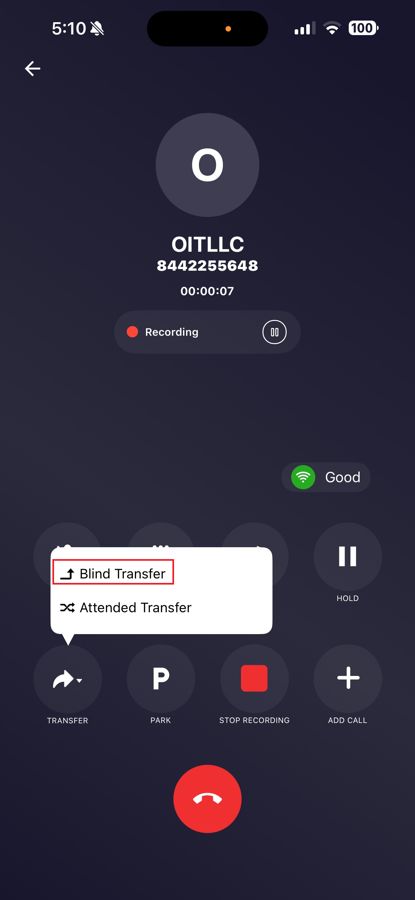
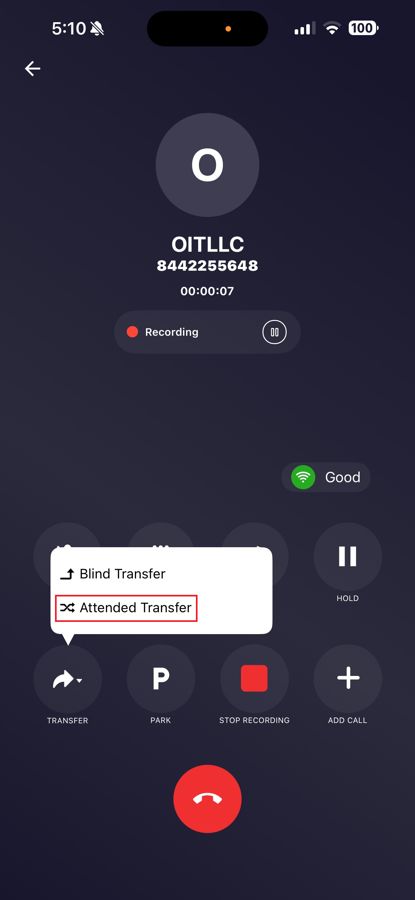
- Tap Transfer.
- Choose Blind Transfer to send the call right away, or Attended Transfer to talk to the person first.
- Dial the extension or number.
- For a blind transfer, tap the transfer button to send it. For an attended transfer, tap the transfer button to call them, talk, then tap it again to connect your caller.
Not sure which to use? See How to transfer a call.
Park a call
- Tap Park (P).
- Pick one of your office's parking spots and tap P next to it.
To pick up a parked call, open the menu (three lines at the top left), tap Call Park, and tap the green call button next to the call. The app calls you and connects you. See Park and pick up a call.
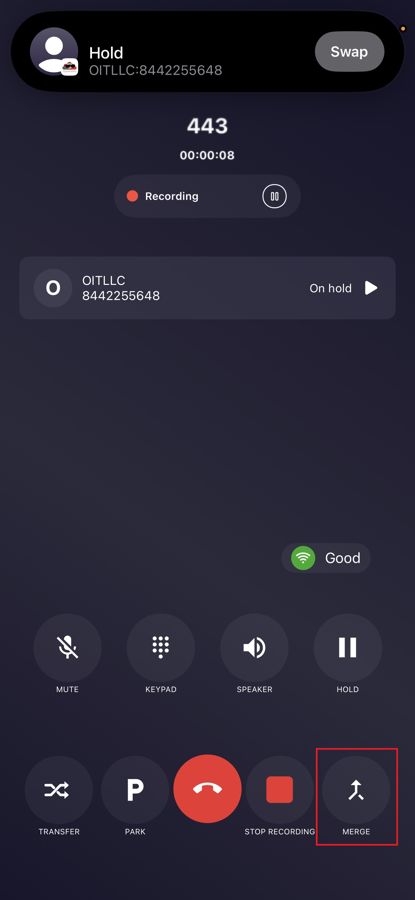
Three-way conference call
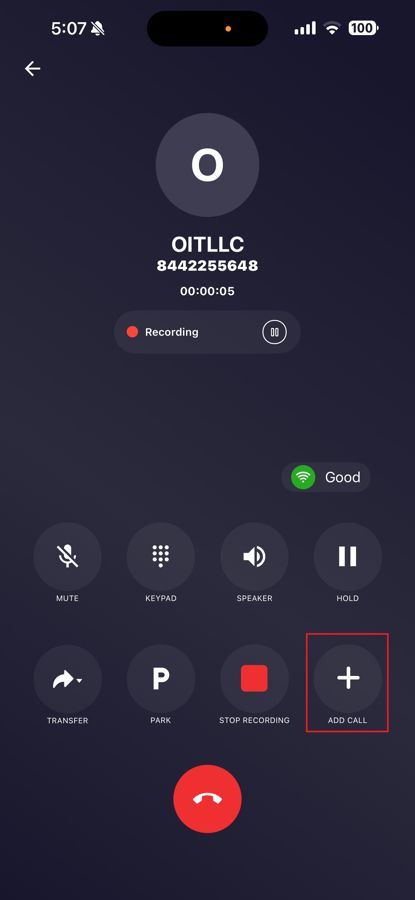
- Tap Add Call. Your first caller goes on hold.
- Dial the second person and tap the call button.
- When they answer, tap Merge. All three of you are now connected.
6. Favorites and coworker status
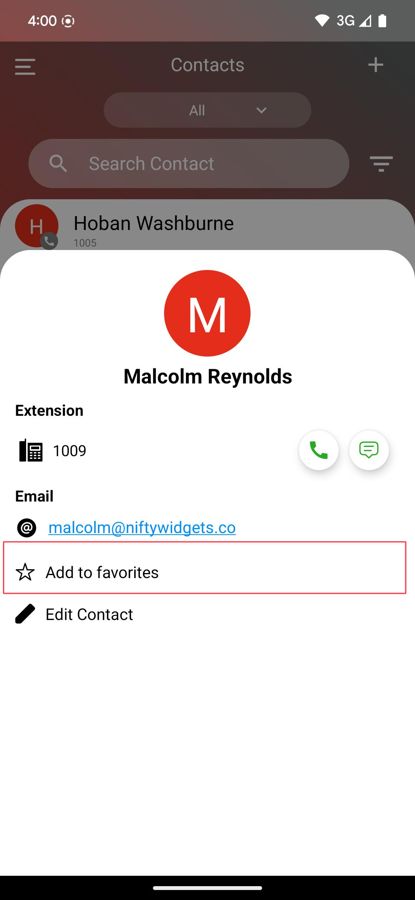
Add the coworkers you call most to your favorites, and you can see at a glance whether they're free before you call or transfer to them.
- Tap Contacts and choose a person.
- Tap Add to favorites. Tap Remove favorite later to take them off.
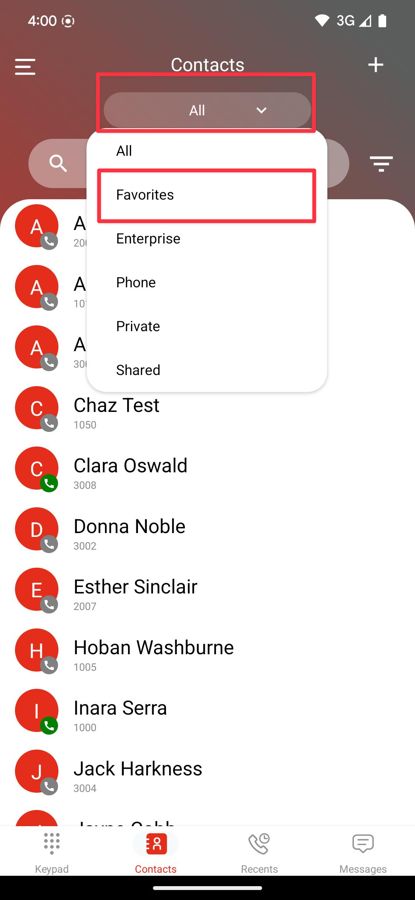
- To see only your favorites, tap the list menu at the top of Contacts and choose Favorites.
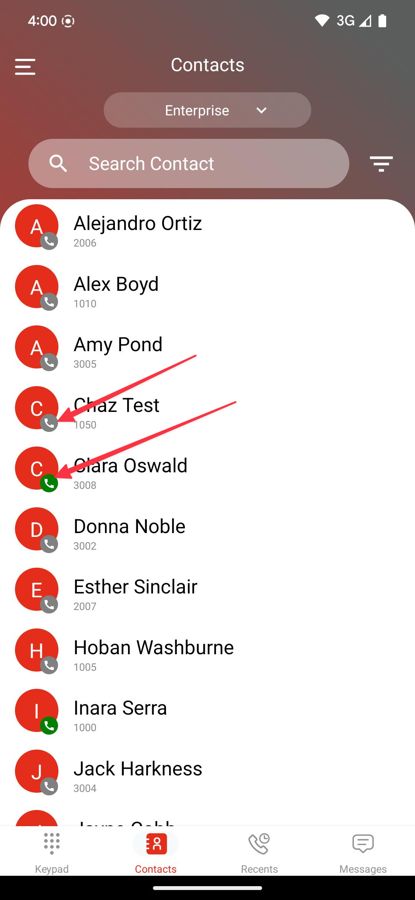
A small dot on each favorite shows their status:
| Dot | Meaning |
|---|---|
| Green | Available |
| Green, blinking | Their phone is ringing |
| Red | Busy on a call |
| Gray | Status unknown right now |
7. Text messages
If texting is turned on for your number, tap Messages at the bottom. See Business texting if you're not sure.
- Start a new text: tap the pencil icon at the top right, type a name or number in To, write your message and tap send.
- Send a picture: tap the paperclip next to the message box, then choose Camera or Gallery.
- Copy, forward or delete a text: press and hold the message, then use the icons at the top.
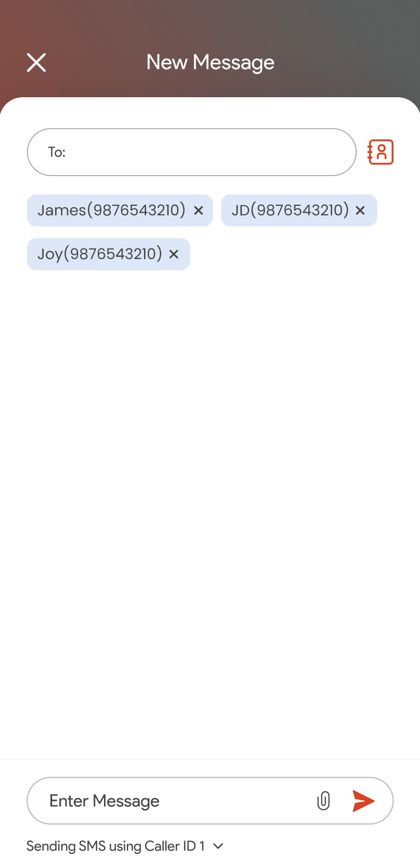
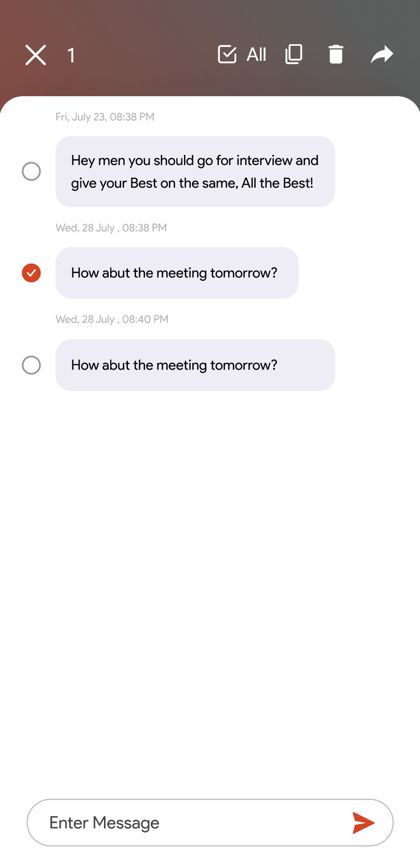
Want the texting steps on their own page? See Send a text in CloudieConnect. Text not sending? See I can't send text messages.
8. Settings
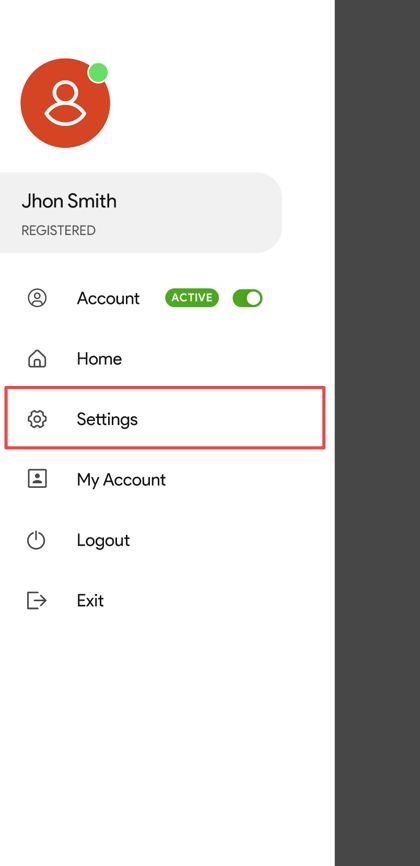
Tap the menu (three lines at the top left), then Settings. From there you can:
- Refresh the app's settings with Update Configuration
- Send logs when PMX asks for them
- Change the app's language or turn on dark theme
Something not working?
Was this helpful?