Send a text in CloudieConnect
Texting has to be included in your service
You can text only when business texting is included and turned on for your PMX service. Not every business number or extension includes it. Don't see Messages in CloudieConnect? See I can't send text messages or ask PMX.
On your cell phone
Open Messages. Tap Messages at the bottom of the app. Your conversations are listed there, and you can search them.

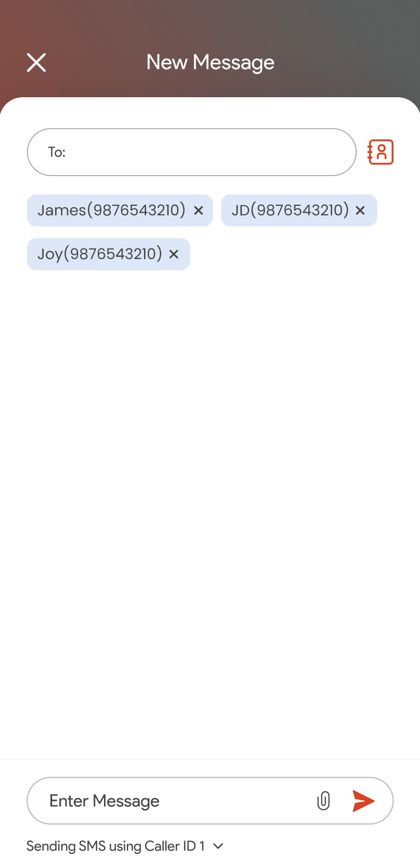
Start a new conversation.
- Tap the pencil icon at the top right.
- In To, type a name or number.
- Type your message and tap the send arrow.
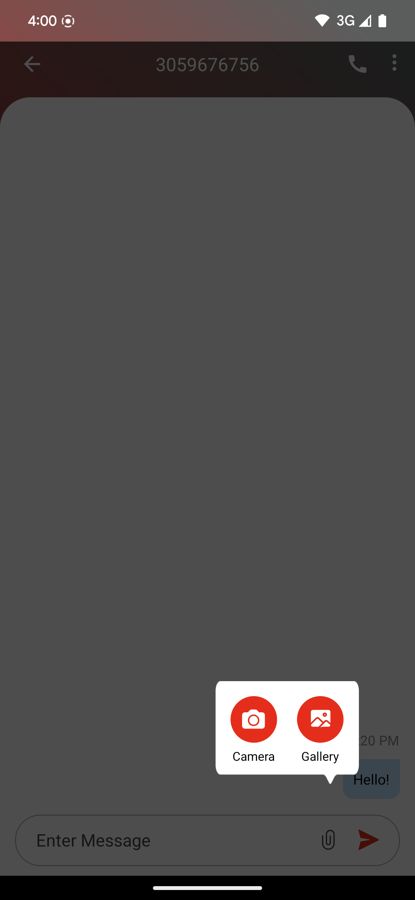
Send a picture. In a conversation, tap the paperclip next to the message box. Choose Camera to take a photo, or Gallery to pick one you already have.
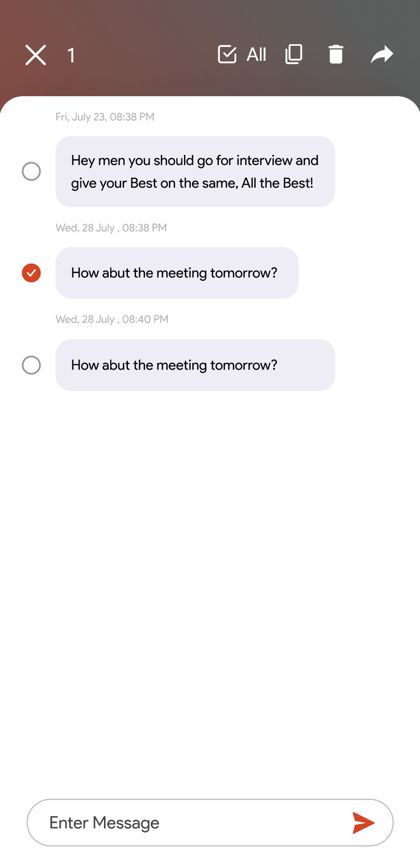
Copy, forward or delete a message. Press and hold the message, then use the icons at the top of the screen.
On your computer
The CloudieConnect desktop app can send and receive texts and pictures too. Click Messages on the left, then open a conversation or start a new one. The steps work the same way as on your cell.
Group texts
CloudieConnect supports group conversations with more than one person, if texting is turned on for your service. Add each person when you start a new message.
Related articles
Was this helpful?