CloudieConnect: use your office phone on your computer or cell
CloudieConnect lets you use your work extension from your Windows or Mac computer, or from your iPhone or Android phone. It's the app PMX recommends for most new users. Depending on how your account is set up, you can:
- Make and receive calls
- Use your computer's speakers and microphone, or a headset
- See recent calls and contacts
- Listen to voicemail and change your greeting
- Send and receive text and picture messages, if texting is turned on for your number
- See whether coworkers are available or on a call
- Park and pick up calls
1. Download and install
Computer
Open the downloaded file and follow the prompts to install.
Cell phone
- iPhone: CloudieConnect on the App Store
- Android: CloudieConnect on Google Play
When the app asks for permissions, tap Allow, so calls can ring. On Android, also allow Display over other apps so incoming calls pop up while you're using other apps. If you skipped a permission, turn it on in Settings > Apps > CloudieConnect > Permissions.
2. Sign in
- Open CloudieConnect.
- Enter your username and click Next.
- Enter your password and click Login.
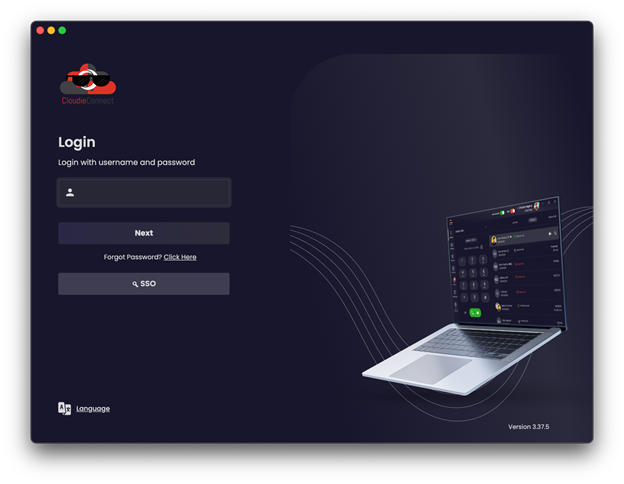
Skip the SSO button
PMX accounts sign in with a username and password. You don't need the SSO button.
Use the same username and password you use for the phone portal. Not sure what they are? Contact PMX.
The rest of this guide shows the computer app. For the phone app, see CloudieConnect on your cell phone.
3. Make a call
From the keypad:
- Click the Keypad icon on the left.
- Type the number, or start typing a contact's name.
- Click the Phone icon.
From contacts or recent calls: open Contacts or Recents, find the person, and click the Phone icon next to them.
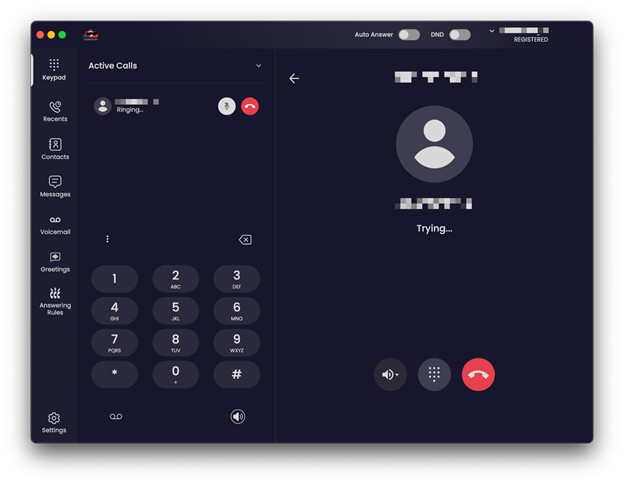
The top of the window shows whether you're connected. REGISTERED under your name means the app is ready for calls. The DND switch there turns Do Not Disturb on and off, and Auto Answer picks up calls for you automatically, so leave it off unless you need it.
4. Answer a call
When someone calls, a notification pops up on your computer. Click to answer or decline. During a call you can mute, open the keypad, or hang up.
5. Choose your microphone, speakers or headset
If callers can't hear you, you can't hear them, or you want to use a headset:
- Click the Settings icon in the lower-left corner.
- Select Devices.
- Under Audio, pick your Input Device (the microphone callers hear) and your Output Device (where you hear calls). You can adjust both volumes here too.
Under Notifications, you can choose where the ringtone plays. For example, pick your computer speakers so you hear calls ring even when your headset is off.
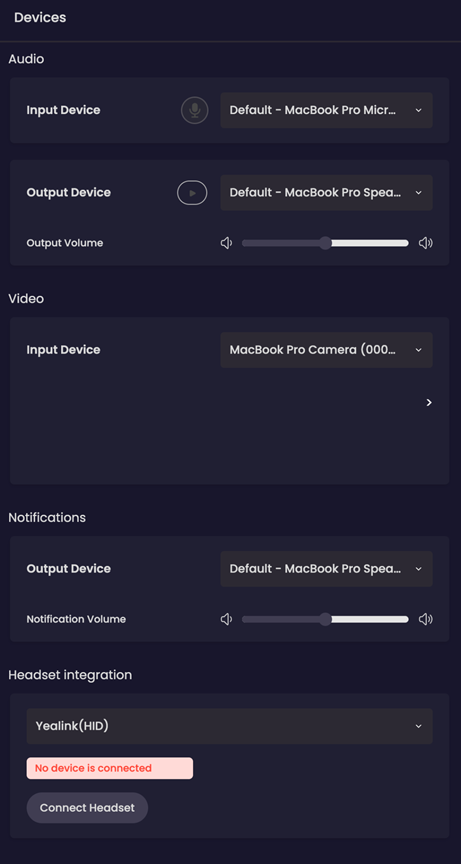
Using a USB or Bluetooth headset: connect it to your computer, then select it as both the input and output device.
6. Ringtone and sounds
Click Settings, then Application Settings, to turn the Ringtone, Alert and Dial Pad Tone on or off.
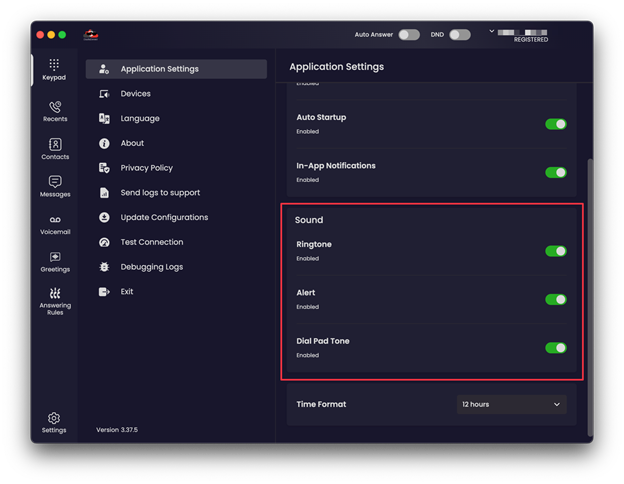
Also check that Auto Startup is on, so CloudieConnect opens when your computer starts and you don't miss calls.
Tip
Leave the ringtone on so you don't miss calls.
7. Voicemail
Click Voicemail on the left (1). Use the tabs at the top to see New (2), Saved (3) or Trashed (4) messages. Press play on a message to listen. Under each message you can:
- (5) Download the recording
- (6) Call the person back
- (7) Forward the message
- (8) See the message details
- (9) Delete it
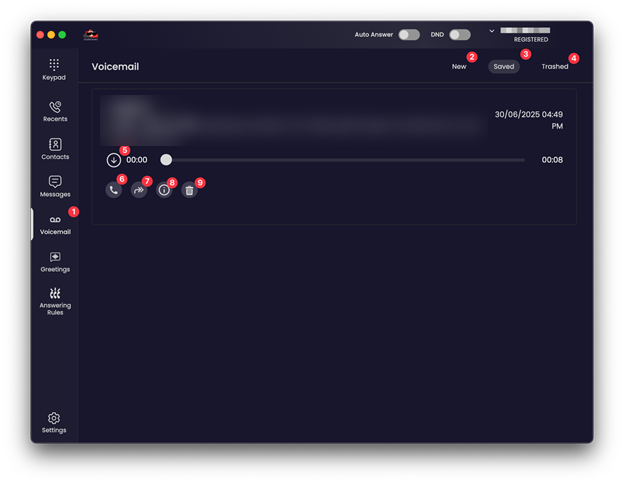
If voicemail transcription is on for your mailbox, the text of the message shows above the recording.
8. Voicemail greeting
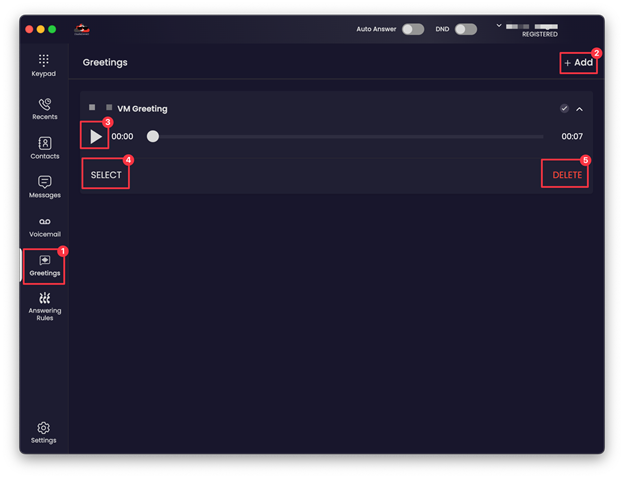
Click Greetings on the left (1). From there you can:
- (2) Click Add to record or upload a new greeting
- (3) Play a greeting you've recorded
- (4) Click Select to make it the greeting callers hear
- (5) Click Delete to remove an old one
Forgot your password?
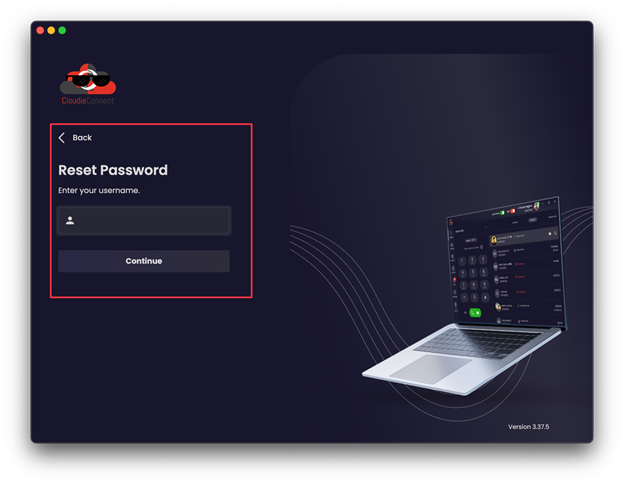
- On the login screen, click Click Here next to Forgot Password?
- Enter your username and click Continue.
- Follow the instructions sent to the email on your account.
Something not working?
Before contacting PMX, try refreshing CloudieConnect's settings. If PMX asks for your app logs, see Send CloudieConnect logs.
Need help?
Contact PMX and tell us:
- Whether you're on Windows or Mac
- Whether the problem is with incoming calls, outgoing calls, or both
- Whether you're using your computer's microphone and speakers or a headset
- Any error message on the screen
Was this helpful?