Refresh CloudieConnect settings
If CloudieConnect isn't ringing, can't make calls, or is missing something PMX just turned on for you (like texting or a new feature), refreshing its settings is a quick, safe fix to try first. It downloads the latest setup for your account from the phone system. It doesn't delete your contacts, voicemail or messages.
On your computer
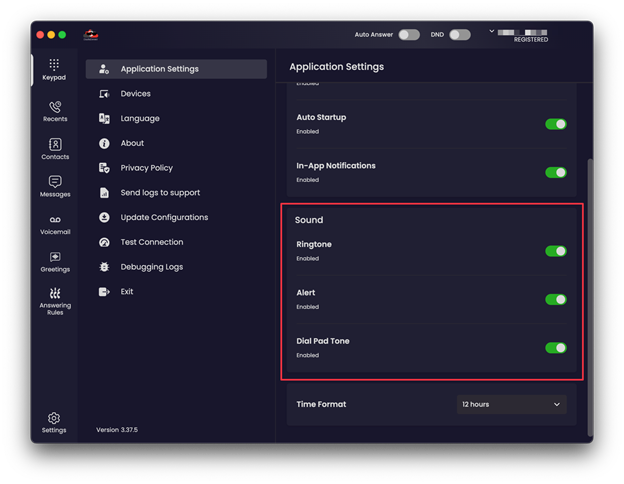
- Click Settings in the lower-left corner.
- Click Update Configurations.
- Wait a few seconds for it to finish.
Check your connection
On the same Settings menu, click Test Connection. It checks whether CloudieConnect can reach the phone system from your internet connection. If the test fails, check that your internet is working, then try again.
You can also look at the top right of the app. REGISTERED under your name means CloudieConnect is connected and ready for calls.
On your cell phone
- Tap the menu icon (three lines) in the top-left corner.
- Tap Settings.
- Tap Update Configuration and wait. You'll see Fetching New Configurations, then Updated New Configurations when it's done.
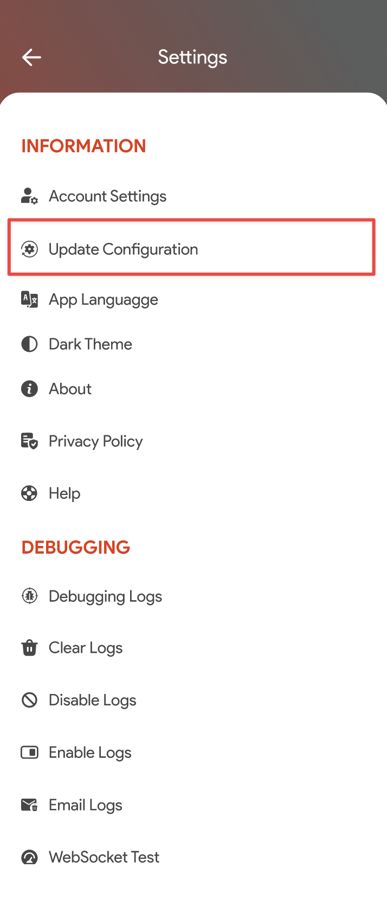
Menu names can vary a little between app versions. If you can't find it, sign out of the app and sign back in, which also downloads the latest settings.
Still not working?
- CloudieConnect calls aren't showing up
- Send CloudieConnect logs, if PMX asks for them
- Contact PMX
Was this helpful?