Send CloudieConnect logs
CloudieConnect keeps a technical log of what the app is doing. If PMX is looking into a problem with your app, we may ask you to send it. You only need to do this when PMX asks.
Send your logs from your computer
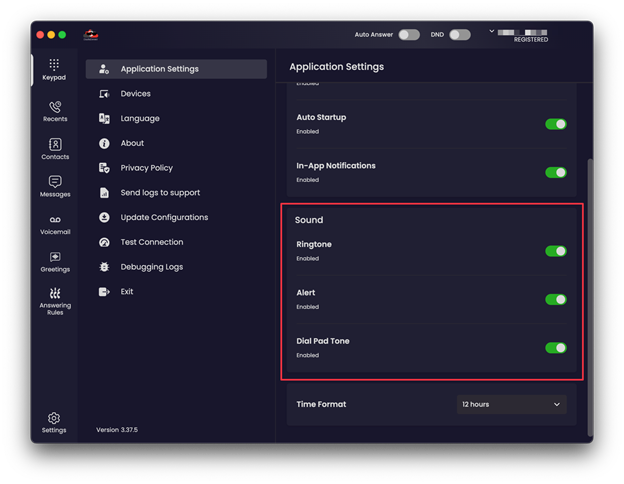
- Click Settings in the lower-left corner.
- Click Send logs to support.
- Follow the prompts to send them.
Send your logs from your cell phone
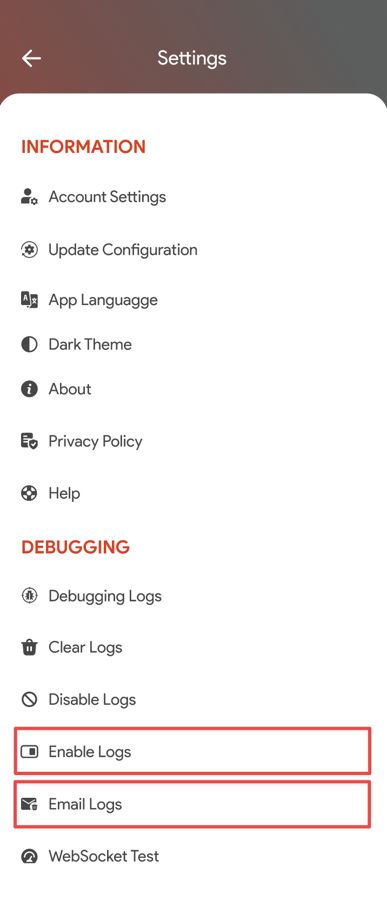
- Tap the menu icon (three lines) in the top-left corner, then tap Settings.
- If PMX asks you to, turn on Enable Logs, then try the thing that wasn't working again so it's captured.
- Tap Email Logs, pick your email app, and send the email that opens.
Then tell PMX
The logs go to our phone platform's support team, so PMX won't see a message from you automatically. After you send them, let PMX know with:
- Your name and extension
- The time you sent the logs
- About when the problem happened
Note
Logs are technical records about the app and your connection. You don't need to read them or understand them, and please don't post them anywhere public.
Related articles
Was this helpful?